
Use this guide as a Booking Experts support specialist helping a joint customer set up or investigate the 1Check connection. Always check the Booking Experts administration the app is installed on: the link, the settings and the log belong to the 1Check site linked to it.
Interface labels: the instructions quote the labels in English, as in the screenshots; the installation page and 1Check show them in the customer's language. The screenshots come from a 1Check test environment and contain fictional data. Site, administration and room names vary by customer.
1. Before you start
- The customer has a 1Check site. Not a customer yet? They choose Contact me on the installation page.
- Access to the right Booking Experts administration, with the right to install apps from the App Store.
- To link the site themselves, the customer needs a 1Check account allowed to manage the PMS connection (customer reference, login, password). Their 1Check administrator has one.
- A confirmed test reservation, agreed with the customer and easy to recognise, to check that changes reach 1Check. Do not change a real guest reservation without the customer's agreement.
- No API key is needed: access is granted from Booking Experts.
2. Install the app and link the site
- Check that the app is installed on the right Booking Experts administration.
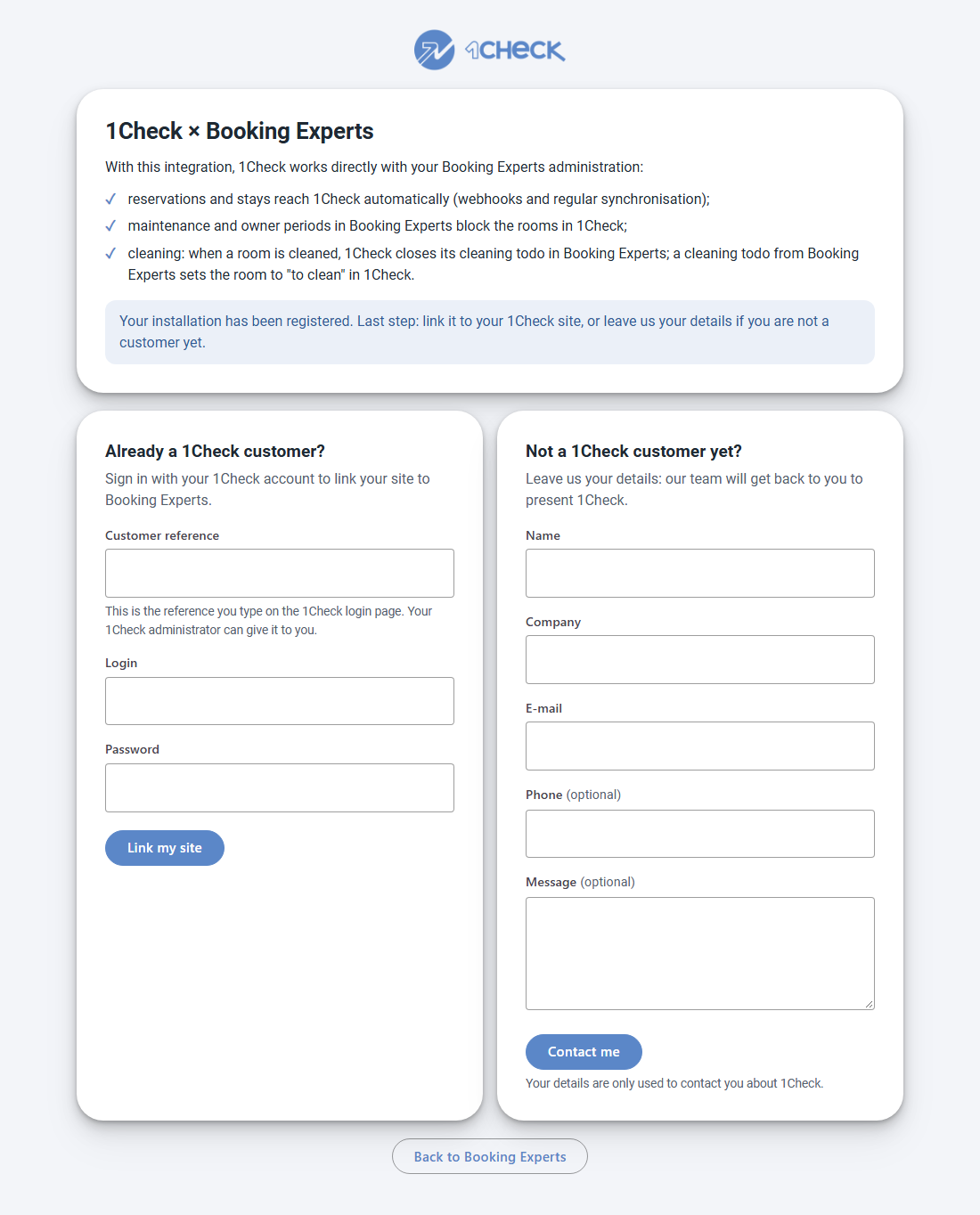
- The customer clicks Install in the App Store and accepts the permissions. On the 1Check installation page, under Already a 1Check customer?, they enter their customer reference, login and password, then click Link my site. They also enter the code if two-step verification is on, and choose the administration if there are several.
Expected result
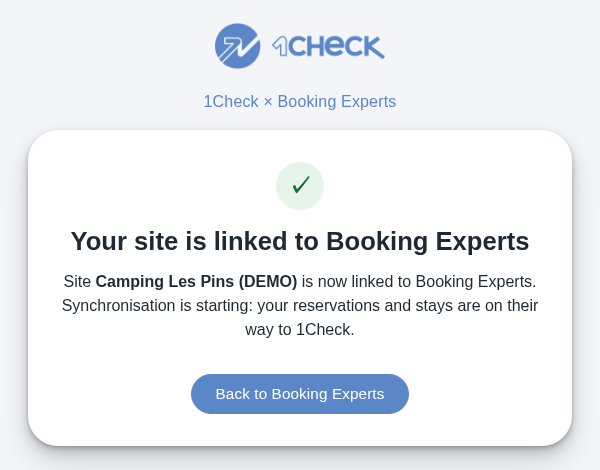
The page shows Your site is linked to Booking Experts (or This site is already linked).
If it doesn't work
| What the customer sees | What to do |
|---|---|
| Thank you for installing 1Check | The installation is registered, but the site could not be linked automatically (for example, it is not yet set up for Booking Experts). 1Check support finishes the link and contacts the customer. Nothing else to do. |
| Incorrect customer reference, login or password. Your password has expired. This account cannot link the site. | Check them on the 1Check login page, change the expired password, or ask the 1Check administrator to sign in instead. |
| This code is incorrect or has expired. The verification code could not be sent. Too many attempts. | Check the code, or sign in again to get a new one. Wait a few minutes before trying again. |
| This page has expired. The installation did not complete. Something went wrong. | The page is valid for about 45 minutes. Start again from the App Store. If it happens again, contact 1Check support. |
3. Check the first reservation
- Change the test reservation in Booking Experts, for example its departure date.
- In 1Check, look for the change in the interconnection log (see Read the interconnection log).
Expected result
A List of stays (Webhook) line, or a line for the event, appears in the log within a minute with the status Finished.
4. Read the interconnection log
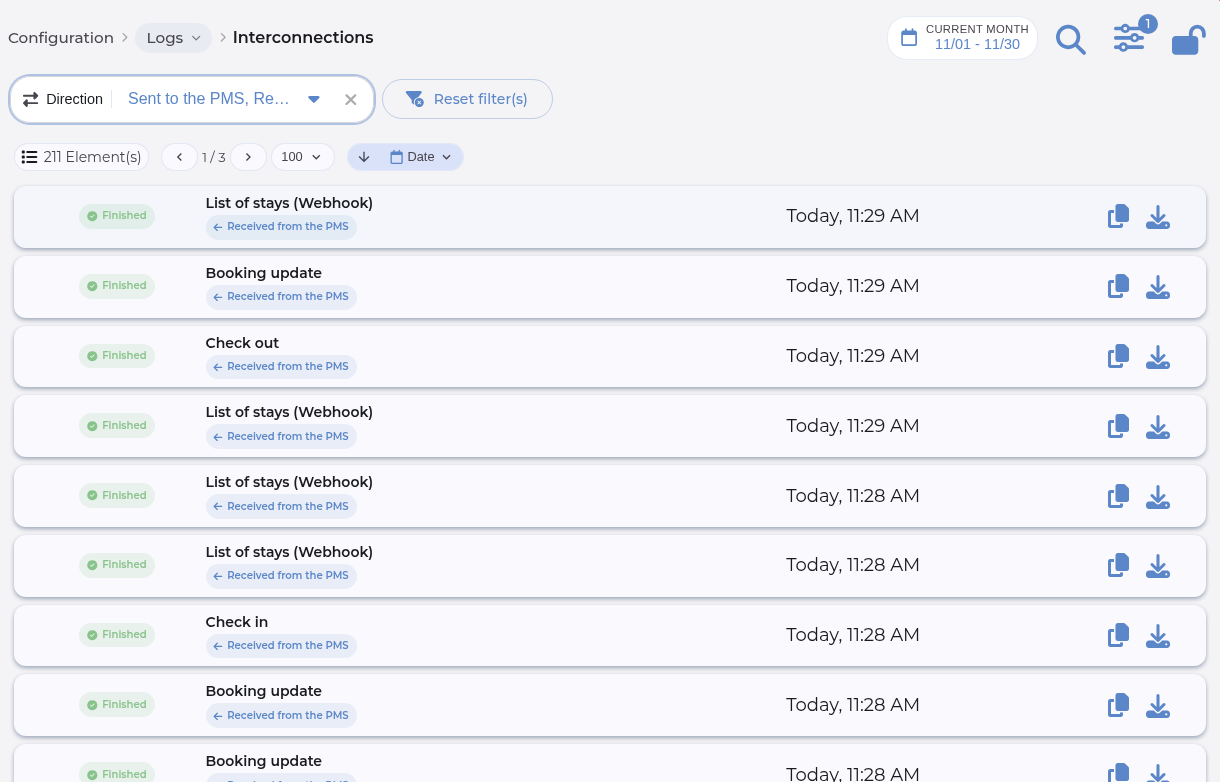
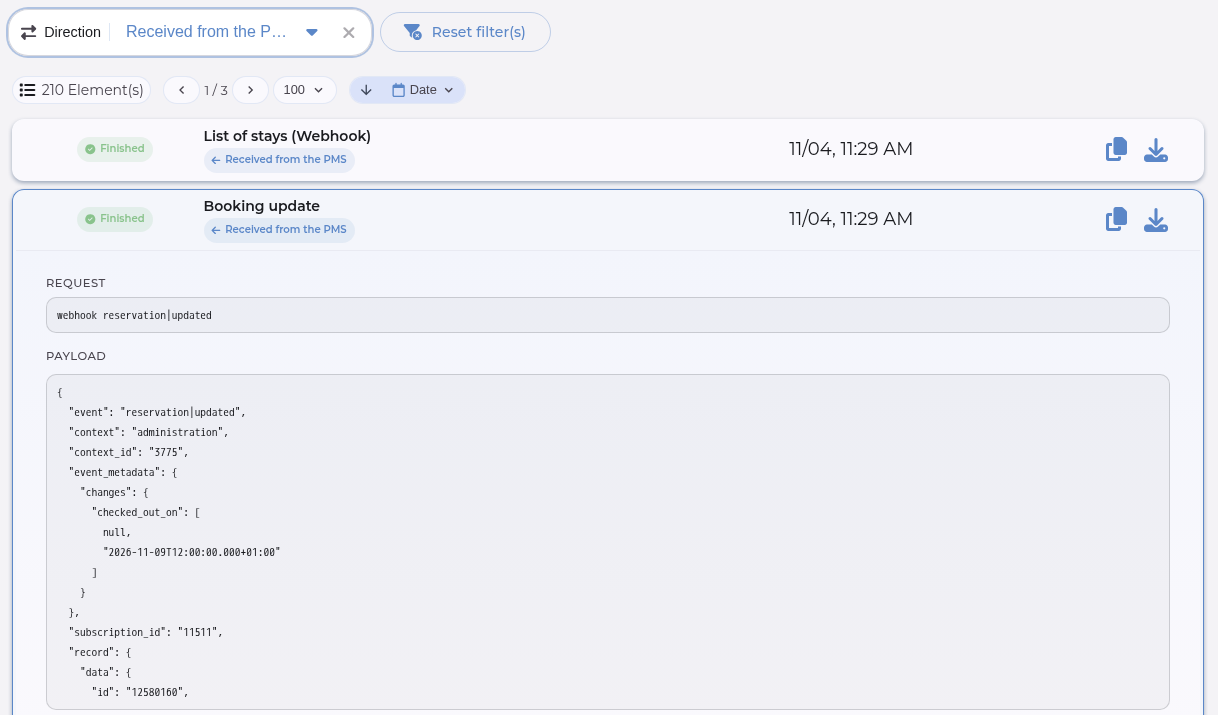
In 1Check, open Configuration → Logs → Interconnections. Each line is one exchange with Booking Experts: open it to see its Request, its Payload and the error, if any. Choose the period first (for example Today), then filter by Direction (Received from the PMS: notifications from Booking Experts; Sent to the PMS: todos closed by 1Check; Read from the PMS: reads made by 1Check), Kind or Status. A filter only offers the values found in the period shown.
| Status | What to check |
|---|---|
| Awaiting processing | The exchange was received but not processed yet: this is not a result. If the line stays this way, send it to 1Check. |
| Finished | 1Check processed the exchange. Check the expected reservation or unit in 1Check. |
| Error | Open the line to read the error. With 401 or 403, Booking Experts refused the access (see Restore access or uninstall the app). Otherwise, send the line to 1Check (see Information to send to 1Check). |
What each line title means
| Line title | Meaning |
|---|---|
| List of stays (Webhook), Booking update | Booking Experts notified 1Check of a reservation change, and 1Check applied it. |
| Check in, Check out | A guest was checked in or out in Booking Experts. |
| Relocation | A move to another room, or a change of dates. |
| Status update | A period (maintenance, owner or stay) was created, changed or removed. |
| Statuses, List of stays | Reads made by 1Check: periods and todos, and reservations. |
Expected result
A healthy connection shows a line for each change made in Booking Experts and a List of stays line each night (Read from the PMS), all Finished, and no line in Error.
5. Synchronised data and timing
- Reservations. Confirmed reservations, and their changes, moves, check-ins, check-outs and cancellations, reach 1Check within seconds. Draft and option reservations are not sent.
- Unavailability. A maintenance period puts the unit Out of order in 1Check, an owner period puts it Out of service. The status is lifted when the period ends or is removed. A status set by hand in 1Check is never lifted by Booking Experts.
- Housekeeping (optional). The 1Check contact turns it on and chooses the Booking Experts todo list to follow. A cleaning todo puts the room on the cleaning list in 1Check; when the room is marked clean in 1Check, its todo is closed in Booking Experts. A todo dated later stays open.
Reservations stay managed in Booking Experts. The only thing 1Check writes back is the closing of cleaning todos.
| What | When |
|---|---|
| Reservation changes | Within seconds, through Booking Experts notifications (webhooks) |
| Nightly check of reservations | Every night, for arrivals up to 6 months ahead |
| Maintenance and owner periods | Within seconds, through webhooks |
| Cleaning todos | Within seconds, through webhooks |
| Room marked clean in 1Check | Its cleaning todo is closed in Booking Experts within seconds |
6. Restore access or uninstall the app
When Booking Experts refuses 1Check's access (log lines in Error with 401 or 403, or after an uninstall), install the app again from the App Store, on the same administration. This keeps the link with the 1Check site and renews the access.
Expected result
The installation page shows This site is already linked, and the next lines of the interconnection log show Finished.
Uninstall the app only to stop the connection on purpose. 1Check notices a lost authorization when its access is next renewed, within a week, and then alerts its support. The site's settings are kept, so installing the app again restores the connection.
Quick diagnosis by symptom
| Symptom | First check | Who acts |
|---|---|---|
| A reservation does not appear in 1Check | Is the connection active? The interconnection log shows recent lines Finished and none in Error (see Read the interconnection log). Is the app installed on the right administration? Is the reservation confirmed? Draft and option reservations are not sent to 1Check. Is there a log line at the time of the change? | Customer, then Booking Experts |
| A unit stays out of order in 1Check | Is the maintenance or owner period still in Booking Experts? A status set by hand in 1Check is never lifted by Booking Experts. | Customer |
| A cleaning todo is not closed | Is the cleaning todo synchronisation on, with the right todo list? Is the todo due today or earlier? A todo dated in the future stays open. | 1Check |
| A room is not put on the cleaning list | Is the todo in the chosen list, open, and due today or earlier? Is the room clean or inspected in 1Check? | Customer, then 1Check |
| Log lines in Error with 401 or 403, or nothing reaches 1Check any more | Booking Experts refused the access, or the app was uninstalled. Install the app again (see Restore access or uninstall the app). | Customer, then 1Check |
Information to send to 1Check
- The customer's name and the Booking Experts administration.
- What was expected and what happened, with the date, the time and the time zone, and the screen where it happened.
- The last successful check, for example the last log line Finished.
- The reservation or unit concerned (its number, not the guest's details).
- The interconnection log line(s): title, direction, status and time.
Booking Experts checks the administration, the installation and the reservation at the source. 1Check checks the link with the site, the access, the settings and the processing.
Never send passwords, tokens, API keys, the address of the installation page (it holds a one-time code), or full guest or payment details.
1Check support: support@1check.com · +33 1 78 91 30 05
Close the support check
The check is complete when the app is installed on the right administration, the site is linked, a change made in Booking Experts appears in the log as Finished and no line is in Error. Note anything unresolved and who follows it up.